![Bedrock_Learning_Logo_Mark_Reverse_RGB_1920px@72ppi.png]](https://help.bedrocklearning.org/hs-fs/hubfs/Bedrock_Learning_Logo_Mark_Reverse_RGB_1920px@72ppi.png?height=50&name=Bedrock_Learning_Logo_Mark_Reverse_RGB_1920px@72ppi.png)
Before you can start sequencing the learning of your subject-specific vocabulary, you need to configure your classes.
1. From your teacher dashboard, click on the ‘classes and sequencing’ tab.
2. Click ‘add class,’ and a pop-up will appear.
3. Find the classes you want to add.
Top Tip
To make this process easier, you can filter by subject or simply search for the class code as it appears on your school MIS.
4. Select the correct year group and subject for each class. A drop-down menu will appear to help you do this.
5. When you have set the year group and subject, select ‘Add.’.gif?width=688&height=325&name=Configuring%20your%20classes%20in%20Mapper%20(WONDE).gif)
You can repeat this process for multiple classes at once. Once you have finished, close the pop-up and return to the classes and sequencing tab.
When you add a class, it will automatically be ‘active’ as default and the nightly synchronisation will add the learners to the class.
Once your classes have been added, you can begin building and sequencing your curriculum.
Copying curriculum sequencing from a class you have archived
If you have a class that has the same content as a class from a previous academic year, or you have already sequenced the content with dates for the new academic year in a class from a previous academic year, you can save yourself time by copying curriculum sequencing from an archived class.
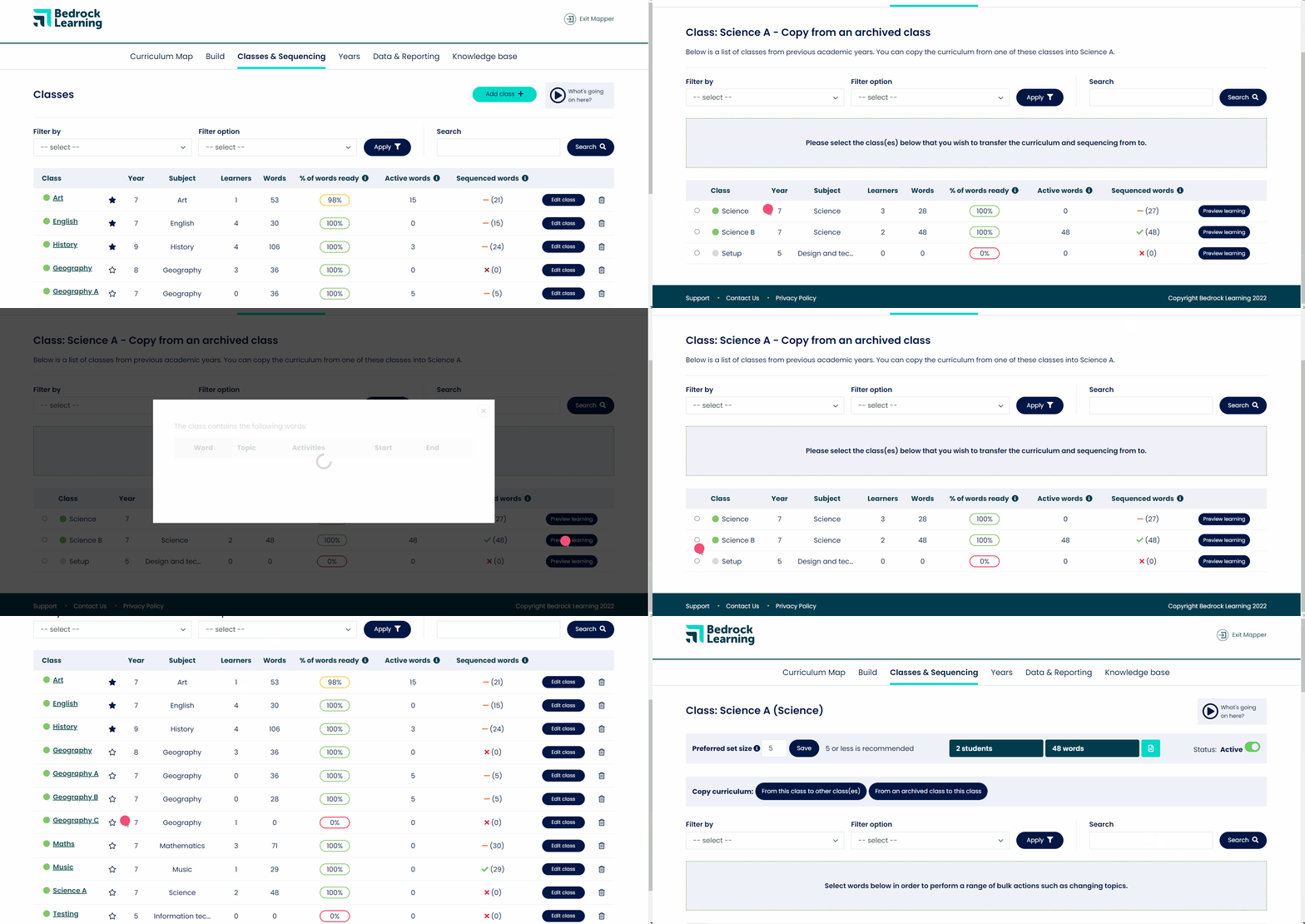
Once you have configured your class(es) for the new academic year, you can click on the copy curriculum ‘from an archived class to this class.’
Note
Classes are automatically archived at the end of the academic year.
2. Select the class with the curriculum that you would like to be added to your current class
3. OPTIONAL You can preview the learning including the content and any current dates that will be added
Top Tip
Use the filtering functionality to view a particular subject or year group.
4. Select the class
5. Choose either ‘replace curriculum sequencing’ or ‘add to current curriculum sequencing’
6. Click ‘apply’
Note
If you select ‘replace curriculum sequencing’ it deletes all of the content that already exists in the class that you have selected and replaces it. If you select ‘add to current curriculum sequencing’ then the content that doesn’t already exist in the class is added with the dates (if they have been added.)
All content and dates after the start of the new academic year will be copied into your new class.
You can then sequence the dates for the content that you have just added.
If you would like this curriculum to be in multiple classes, use the copy curriculum ‘from this class to other class(es’) button.