![Bedrock_Learning_Logo_Mark_Reverse_RGB_1920px@72ppi.png]](https://help.bedrocklearning.org/hs-fs/hubfs/Bedrock_Learning_Logo_Mark_Reverse_RGB_1920px@72ppi.png?height=50&name=Bedrock_Learning_Logo_Mark_Reverse_RGB_1920px@72ppi.png)
NOTE: Adjustable audio settings are a new feature for teachers, based on feedback received. Further flexibility to audio settings is in development for release in the future.
Contents of this article (click to jump to the applicable section)
Audio settings available:
There are currently three audio settings that can be applied at the class level.
- Default setting
Learners must listen to the full voiceover narration on the main teaching slide for each lesson (where a new word is first introduced to a learner). In addition, should a learner get an answer wrong, audio will narrate the feedback for that answer. - "Always Play"
All audio across Bedrock activities will auto-play and must be listened to by the learner. This includes incorrect, correct and try again feedback audio, the prose, feedback sound effects and all assessment questions. This may be useful if you have learners who would benefit from the human narration to improve their learning. - "Disable Auto-Play"
No audio will play automatically, however learners can still opt to listen to specific narration by clicking a play button (available on all audio including pre/post tests and the narration for correct, incorrect or try again feedback).
To ensure learners still read the explicit teaching of words in Bedrock's vocabulary curriculum, Common Roots, 102 Terms and Jekyll & Hyde (and do not simply click through and miss important learning), a 10-second countdown clock will display before the Continue button becomes available.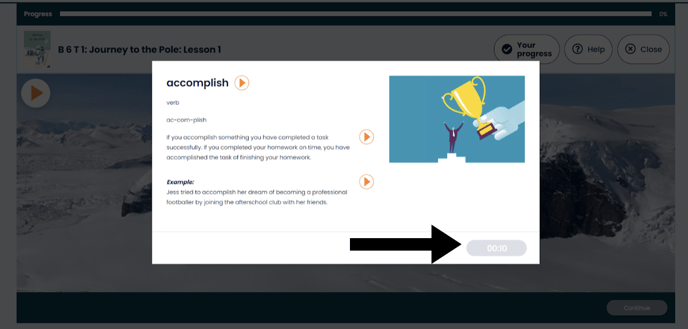
NOTE: In all options, video audio within the Grammar curriculum and all feedback sound effects will still play.
How to change audio settings for your class
NOTE: As a class teacher, you can only make changes to the audio settings for the classes you are linked to via your school MIS (or manually linked to in Bedrock).
If you are a Bedrock lead teacher (admin), you can make changes to all classes. If you are making changes on behalf of other classroom teachers, ensure you have considered the benefits and impacts for all learners within the class.
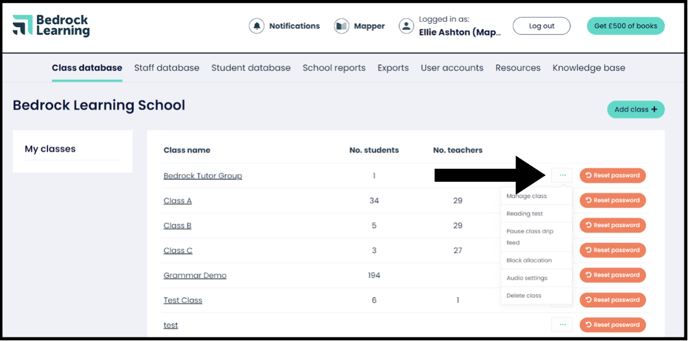
There are two places in your teacher dashboard where class audio settings can be adjusted. The first is in the ‘Class database’ area.
- Click the three-dots menu for the class you wish to access and choose ‘audio settings’ from the dropdown.
-
You will be able to see the current setting for the class and adjust it as required. Click "confirm" to save your selection. Settings will be updated for all learners in the class immediately.

NOTE: If a learner is logged in and halfway through a lesson, audio changes will not take effect until they log out or complete the lesson and start a new one.
Audio settings can also be changed in the "Class database" area of your teacher dashboard
- Select the class you wish to amend and click "Manage" from the header menu.
- Scroll to the bottom of the screen to view the audio settings for that class, and adjust accordingly. Click "confirm" to save your selection. Settings will be updated for all learners in the class immediately. As above, if a learner is halfway through a lesson, audio changes will not take effect until they log out or complete the lesson and start a new one.

Bedrock is committed to continually enhancing and expanding functionality based on your valuable feedback. Stay tuned for upcoming phases which will introduce even more exciting options to personalise the audio experience for your learners in Bedrock.
Keep the feedback coming and help us enhance our platform!